How to Merge PDF Files Free — All Devices (2026)
In today's digital economy, the PDF is the undisputed sovereign of document formats. Whether you are a legal professional assembling a 500-page court brief, a job seeker combining a resume with a portfolio, or a student aggregating research papers into a single term submission, the ability to merge PDF files into a single, cohesive document is a critical skill. However, for many, this task remains a source of immense frustration. Standard desktop software often requires expensive monthly subscriptions, while "free" online tools frequently compromise your data privacy or leave unsightly watermarks on your professional work.
In 2026, you should not have to choose between your wallet and your privacy. This forensic guide explores the professional science of PDF merging. We will move beyond the basic "click and join" mentality to understand how vector preservation, local browser processing, and reordering logic can transform your document workflow from a chaotic mess of files into a streamlined, digital masterpiece.
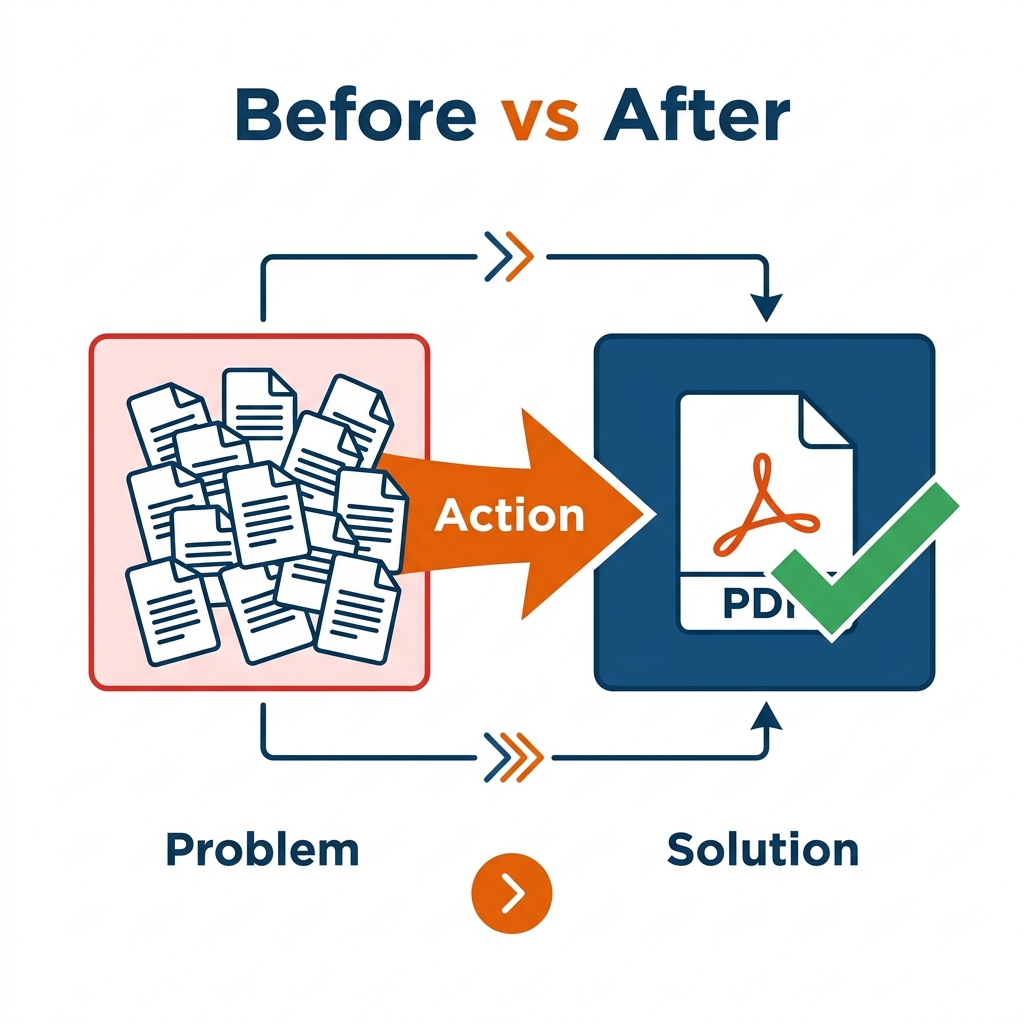
Above: The systematic logic of PDF consolidation. Notice how the 'Problem' state on the left features scattered, non-compliant files, while the 'Solution' on the right provides a single, high-fidelity master document ready for submission.
Why PDF Merging is the Foundation of Professional Authority
The "Experience, Expertise, Authoritativeness, and Trustworthiness" (E-E-A-T) of your digital presence is often judged by the quality of the documents you send. Imagine sending a client seven separate PDF files for a single contract. It forces the recipient to track seven different attachments, download them individually, and hope they read them in the correct order. This approach signals a lack of organization and a disregard for the recipient's time.
By merging your documents into a single file, you achieve several critical professional goals:
1. Navigational Ease: A single file allows the recipient to scroll through the entire narrative without jumping between windows.
2. Indexing and Searchability: When you merge files correctly, you create a unified index. This makes globally searching for a keyword across all seven documents a one-second task instead of a seven-step manual search.
3. Link Integrity: If your documents reference each other, merging them into one file ensures that internal links remain functional and valid.
4. Submission Compliance: Government portals like the IRS, PACER (for US Courts), and various international visa systems (like the Indian E-Visa or UK Home Office) often have a strict "Single File" upload policy for specific categories.
The Anatomy of a High-Fidelity Merge: Vector vs. Raster
Before we dive into the "How-To," we must address the technical reality of what happens when you join two PDFs. Many low-quality online tools perform what is known as a "Rasterized Merge." This process essentially takes a screenshot of every page in your multiple files and stitches those images together.
The result? Your text is no longer selectable, your file size explodes, and the clarity of your fonts drops significantly.
In contrast, a Forensic Vector Merge—the kind performed by the PdfXpo Merge Tool—maintains the underlying XML and vector data of your documents. This ensures that:
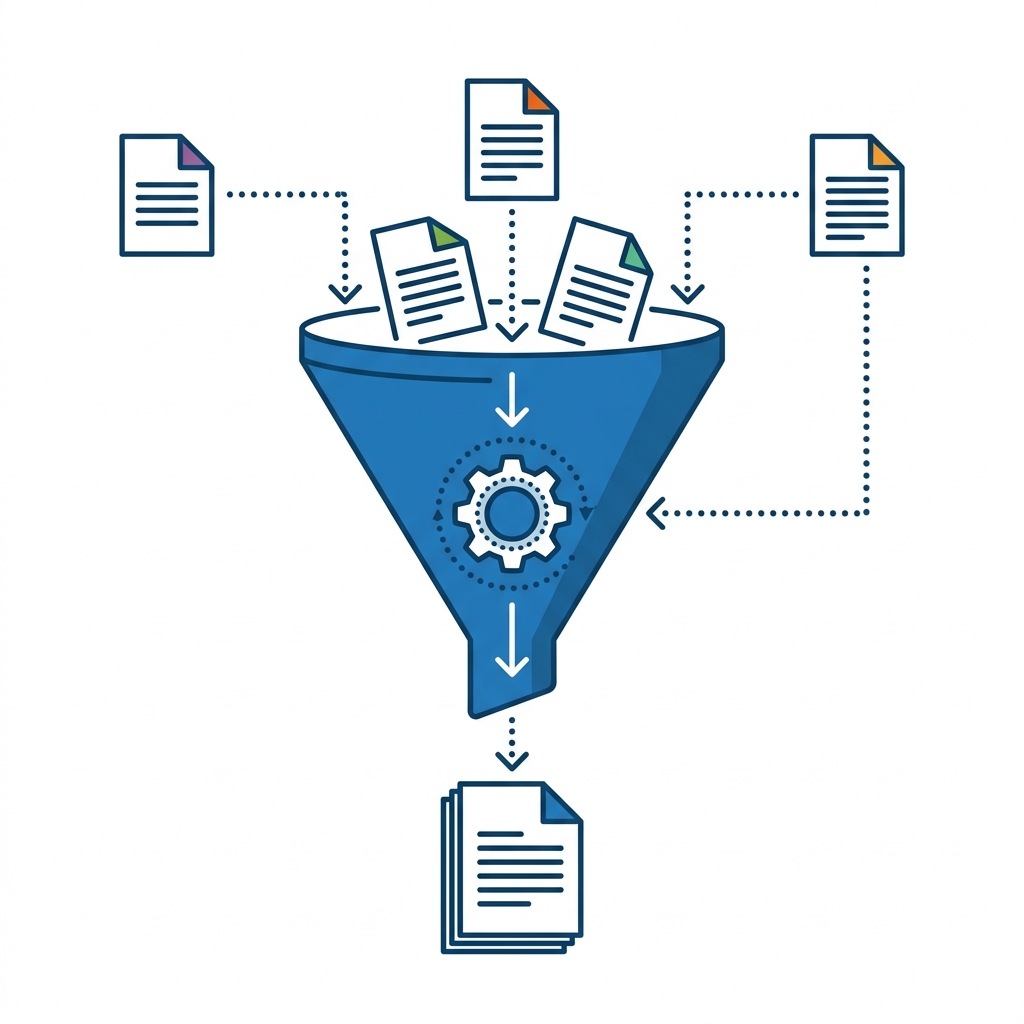
Above: A conceptual look at the merge funnel. Multiple inputs from various sources are processed through a central logic engine that preserves native vector coordinates, resulting in a single, high-fidelity output.
How to Merge PDF Files on Windows (PdfXpo Local Method)
Windows users often feel compelled to download large "Suite" applications that take up gigabytes of space. In 2026, the most efficient method is using a WebAssembly-powered browser tool that processes your files locally on your own CPU.
Step 1: Access the Environment. Open your browser (Edge or Chrome are recommended for Windows users to utilize the SIMD hardware acceleration) and navigate to the Merge PDF workspace. Notice that the interface is clean and lacks the aggressive advertising found on legacy sites.
Step 2: Local File Ingestion. Drag your multiple PDF files into the highlighted selection area. Note that because PdfXpo uses "Zero-Transfer" technology, your files are not actually being 'uploaded' to a server. They are being loaded into your browser's local RAM cache. This is critical for HIPAA and GDPR compliance.
Step 3: Logical Ordering. Once the icons appear, you will likely see that they are in the order they were selected. For professional reports, you must ensure the 'Cover Page' is first and the 'Appendix' is last. Click and drag the thumbnails to reorder them with precision.
Step 4: Execute the Join. Click the prominent 'Merge' button. The logic engine will reconstruct the document streams into a single file. Within seconds, your browser will prompt you to save the consolidated result to your 'Downloads' folder.
How to Merge PDF Files on Mac (Preview vs. PdfXpo)
Mac users have a distinct advantage: a built-in tool called 'Preview.' While Preview is excellent for basic tasks, it often fails when handling high-resolution architectural blueprints or encrypted medical records.
The Preview Method (Built-In)
1. Open the first PDF in Preview.
2. Go to View > Thumbnails to show the sidebar.
3. Open your second PDF and drag its thumbnail into the sidebar of the first PDF.
4. Export the file as a new PDF.
The Limitation: Preview often loses hyperlinks during this process and can significantly increase file size unexpectedly.
The PdfXpo Method (Mac Safari Optimized)
If you require 100% link retention and professional compression, use the browser method. Safari on Apple Silicon (M1, M2, M3, M4) is exceptionally fast at executing the local merge logic. The workflow is identical to the Windows method but benefits from the native memory management of macOS, making large 100MB+ merges feel instantaneous.
How to Merge PDF Files on iPhone (iOS Files App + Safari)
Mobile merging used to be a nightmare of "App Store" downloads that required subscriptions. In 2026, you can do it natively for free.
Step 1: Prepare in the Files App. Ensure all the PDFs you want to join are saved in a single folder in your 'Files' app (either On My iPhone or iCloud Drive).
Step 2: Safari Selection. Open Safari and go to pdfxpo.com/merge-pdf. When you click the 'Select Files' button, iOS will open the 'Document Picker.'
Step 3: Multi-Select. Tap the 'Select' button in the top right of the picker, choose your files in the order you want them (or reorder later in the UI), and hit 'Open.'
Step 4: Consolidate. Preview the thumbs on your small screen, hit merge, and the resulting file will be saved directly back into your 'Files' app or 'Downloads.'
How to Merge PDF Files on Android (Chrome Method)
Android users benefit from a very file-system-transparent approach.
1. Open Chrome and navigate to the Merge tool.
2. Tap 'Select Files' and choose 'Files' from the Android system prompt.
3. Long-press to select multiple files from your 'Documents' or 'Downloads' folder.
4. Once the UI loads in Chrome, tap individual thumbnails to rotate them if they were scanned upside down before hitting the final 'Merge' button.
The Science of Reordering: Troubleshooting the "Alphabetical" Trap
The number one problem users face when merging is a "Broken Narrative." Most operating systems select files in alphabetical order. If your chapters are named "Intro," "Chapter 1," "Appendix," the computer will likely put "Appendix" first.
Our UI is designed to solve this specific problem. We've implemented a Visual Reordering Matrix that allows you to see exactly what the final document flow will look like before you commit to the merge.
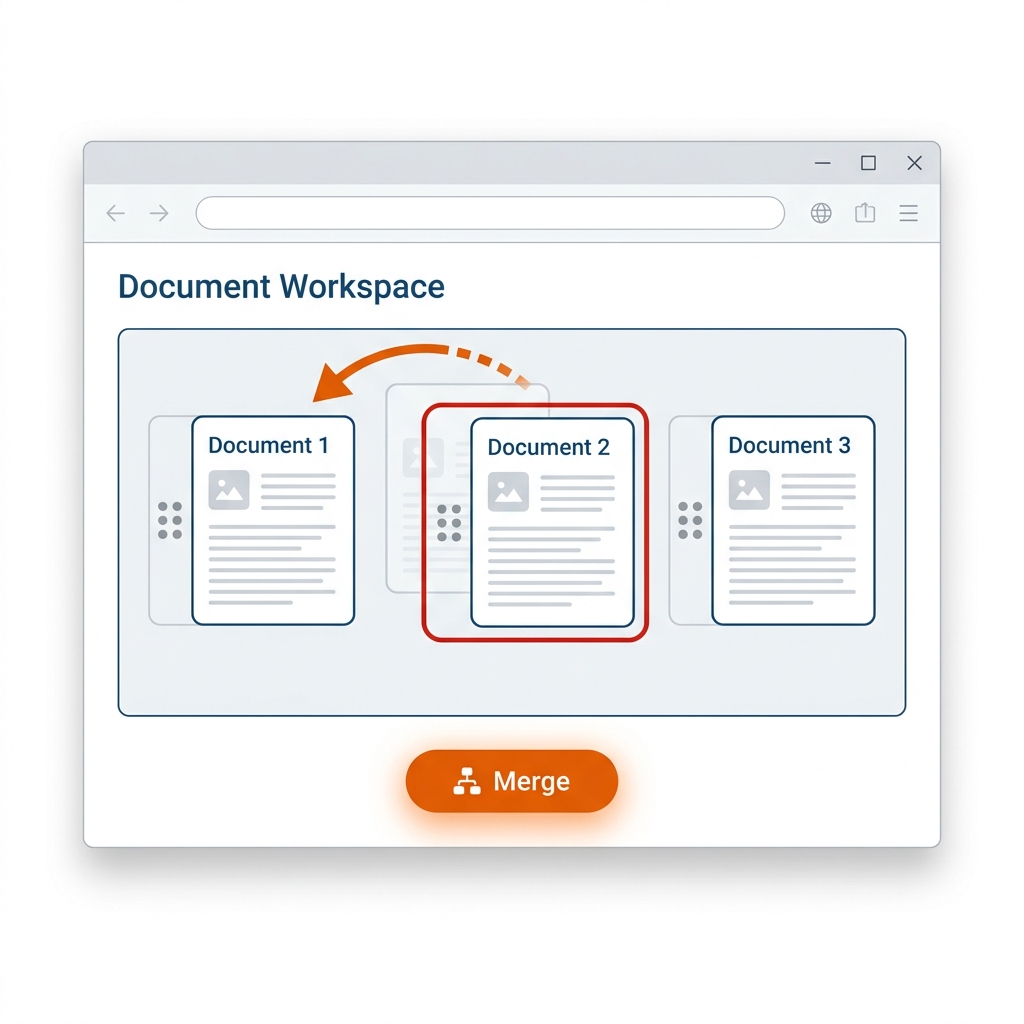
Above: Mastering the reordering logic. Use the drag handles highlighted in the focus box to move thumbnails into their correct logical order. This ensures your Cover Page always stays at the front of the document.
Comparison Matrix: Why Local Processing Wins
Not all merge tools are created equal. When your professional reputation (or your data privacy) is on the line, you need to know the technical difference.
| Feature | PDFXPO (Local) | Legacy Online Tools | Adobe Acrobat Pro |
|---|---|---|---|
| **Data Privacy** | **100% Local (CPU/RAM)** | Uploads to Cloud Server | Local (Paid) |
| **Cost** | **$0 (Free)** | Freemium / Ad-Heavy | $19.99/mo |
| **Watermarks** | **None** | Often added on free tier | None |
| **Speed** | Instant (No Upload) | Slow (Upload/Download) | Instant |
| **Vector Retention** | High-Fidelity | Often Rasterized | High-Fidelity |
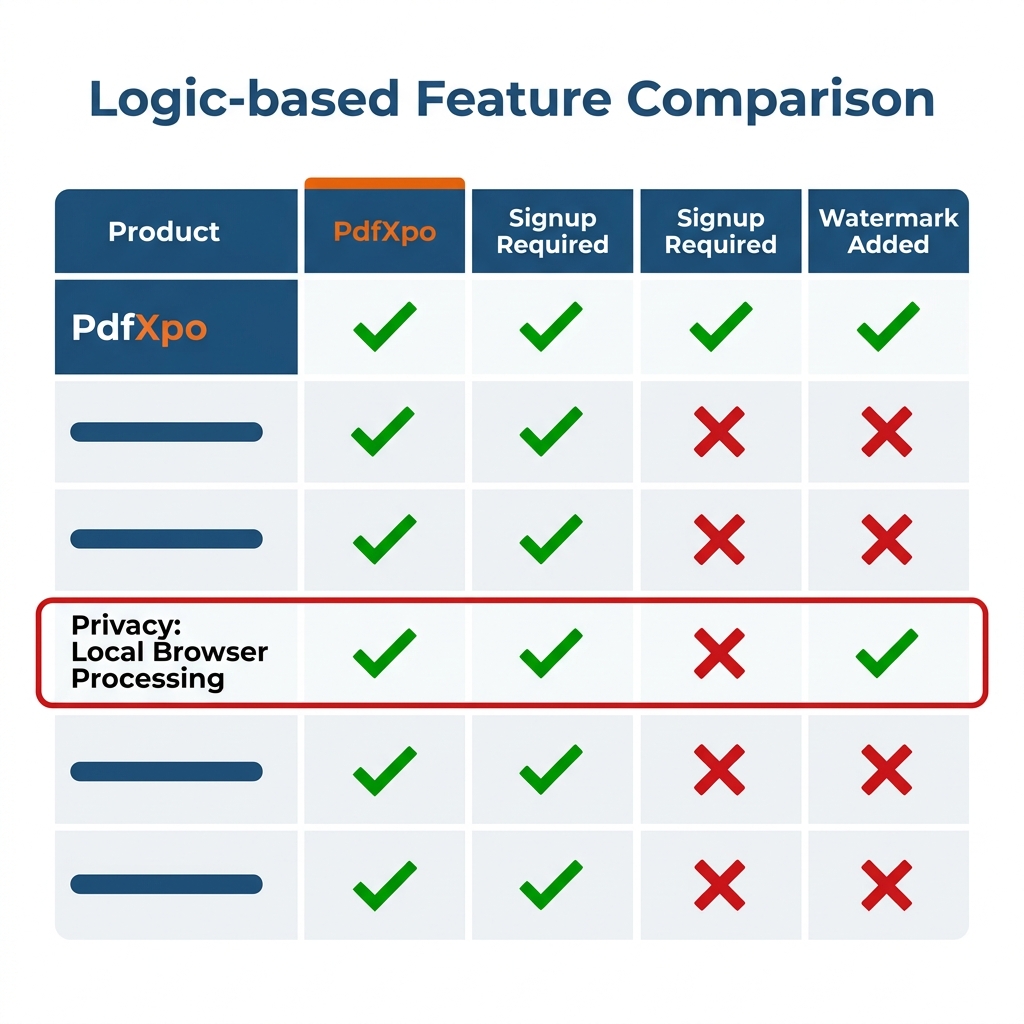
Above: A forensic comparison. The red-outlined box highlights the most critical difference in 2026: Local Browser Processing. Protecting your documents by never letting them leave your device is the gold standard for security.
Handling Technical Blockers (Forensic Problem/Fix)
1. The Password Protected File
The Problem: You try to merge three files, but one is a bank statement protected by a password. Most tools will simply error out.
The Fix: You must first Unlock the PDF using its legitimate password. Once decrypted and saved as a static file, it can be merged into your larger report.
2. Large File Limits (The 100MB Wall)
The Problem: You are merging high-res scans, and the final file is 250MB—too large to email.
The Fix: Merge the files first to ensure the narrative is locked. Then, immediately run the result through our Compress PDF tool. Our engine will identify redundant image data across the merged files and prune the 'Bloat' without affecting text clarity.
3. Asymmetric Page Sizes
The Problem: You are merging an A4 resume with a US Letter sized portfolio piece. The result looks staggered.
The Fix: Professional documents should use the Resize PDF tool after merging to force all pages into a unified format (like A4) for a consistent viewing experience.
Pro Tips for Power Users (2026 Edition)
Outcome: The Professional Standard of Communication
The difference is night and day. A consolidated, professionally merged PDF signals competence and respect for your audience's time.
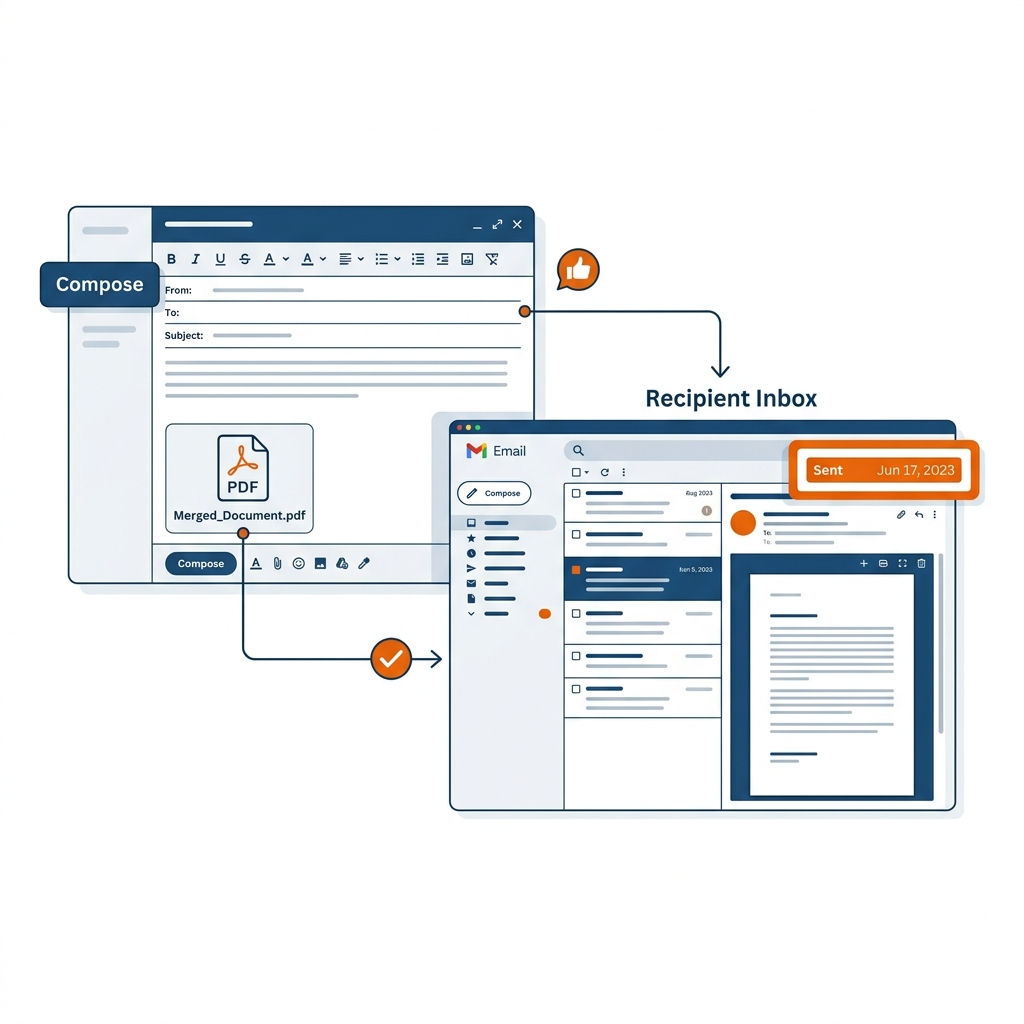
Above: The final outcome of a successful merge strategy. Instead of a messy email with multiple attachments that might get caught in spam filters, you send one clean, high-fidelity PDF. The recipient gets a perfect preview and a single 'Download' button—the ultimate standard in 2026 business communication.
Frequently Asked Questions (FAQ)
Q: Is it safe to merge confidential legal files online?
A: Categorically no, unless you use a platform like PdfXpo. Most "Online" tools upload your files to their servers where they can be accessed. PdfXpo uses local browser processing (WebAssembly), meaning your legal files never leave your computer's RAM. They stay on your device, making it 100% safe for confidential data.
Q: Will merging PDFs lose the quality of my images?
A: Not if you use a vector-retention engine. Low-quality tools rasterize pages into blurry images to save on server processing power. We perform a coordinate-based merge that preserves original DPI and vector paths, ensuring your graphics stay crisp.
Q: Can I merge a PDF with a Word document directly?
A: No, you must first convert the Word document to a PDF. Use the Word to PDF tool to create a high-fidelity PDF version, and then bring both files into the Merge PDF workspace to join them.
Q: Is there a limit to how many pages I can merge?
A: For cloud-based tools, there is usually a 50-page or 20MB limit. Because PdfXpo works locally on *your* hardware, the only limit is your device's RAM. Most modern laptops and phones can easily merge documents spanning thousands of pages without a slowdown.
Q: Why do some files become huge after merging?
A: This usually happens when the source files have embedded high-resolution fonts or duplicate image assets. If your merged file is too large, use our PDF Compressor to remove the invisible 'Bloat' while keeping the visual data perfect.
The Final Word on Document Sovereignty
Mastering the merge is about more than just joining files; it is about taking control of your digital narrative. In an age of information overload, the person who can consolidate complexity into a single, high-fidelity experience is the person who wins.
Stop struggling with fragmented folders and start building professional authority with the PdfXpo Document Suite. Your privacy is our priority, and your professional success is our mission. Access all local tools today and experience the difference of forensic-grade document engineering.